How to Use Text to Speech on Discord: A Complete Setup Guide for 2025
Jan 23, 2026
Text to speech on Discord can convert typed messages into spoken audio, enabling messages to stand out in fast-moving chat channels where text alone would be ignored easily.Discord's TTS feature is easy to set up and use, which is particularly suitable for those who need to grab attention during a raid, improve accessibility for a server, or simply have some fun with friends.
This guide comprehensively covers all essential information: how to enableTTS in settings, use the /tts command effectively, configure options across the server, and explore external tools when the default robotic voices fail to meet expectations.
What Discord TTS Actually Does
Discord's text-to-speech converts written messages into audio played through users' devices. When a message is sent using the /tts command, Discord's speech engine will read it aloud for anyone with TTS notifications enabled.
The system relies on the native speech synthesis of each device, such as the built-in voices of Windows, the native voices of macOS, and the speech APIs of browsers. As a result, the same message can sound different depending on the receiving device. The voice quality tends to be functional but robotic, which is a limitation leading some users to seek third-party solutions for more natural-sounding voices.
TTS works in both text channels and direct messages, whereas it is most often used in servers where multiple users can hear the audio simultaneously.
Step 1: Enable TTS in User Settings
Before TTS messages are sent or received, the feature must be enabled in Discord’s settings. This is a personal setting—all users can control whether they can send and receive TTS audio.
On Desktop (Windows/Mac):
- Click the gear icon next to the username in the bottom-left corner to open User Settings.
- Navigate to Accessibility in the left sidebar.
- Find the Text-to-Speech section.
- Toggle on "Allow playback and usage of /tts command."
Important Note: As of 2025, Discord does not support TTS on mobile apps (iOS or Android) due to mobile operating system restrictions on voice APIs. As a result, TTS functionality is only limited to the desktop app and browser versions.
Step 2: Configure TTS Notification Preferences
Once TTS is enabled, users can control when messages are read aloud, preventing every TTS message in every server from playing through speakers.
- In User Settings, navigate to Notifications in the left sidebar.
- Scroll down to the Text-to-Speech Notifications section.
- Choose one of the following three options:
| Setting | What It Does |
|---|---|
| For all channels | Every TTS message in any server is played aloud |
| For current selected channel | Only TTS messages in the active channel are played |
| Never | Disables incoming TTS messages (sending TTS messages is still allowed) |
For most users, "For current selected channel" strikes the right balance—Users can hear TTS messages when actively engaged in a conversation but will not be interrupted by messages elsewhere.
Step 3: Adjust TTS Playback Speed
Discord allows users to control the speed at which TTS messages are read, which affects comprehension and overall user experience.
- In User Settings, navigate to Accessibility.
- Find the Text-to-Speech Rate slider.
- Adjust the slider between slower (easier to understand) and faster (less interruption time).
Users can test different speeds by sending themselves a TTS message in a test server or DM. Finding the right pace makes a noticeable difference in user experience.
Step 4: Send Your First TTS Message
Once settings are configured, it is simple to send a TTS message:
- Join or open any text channel or DM.
- Type /tts followed by a space and a message.
- Press Enter.
Example:
/tts Hello everyone, the raid starts in five minutes!
Discord reads your message aloud to everyone in the channel with TTS enabled. The /tts prefix will not appear in the displayed message; that is to say, recipients will just see the specific text while hearing it spoken.
Quick Tips:
● Keep messages concise. Long TTS messages might be tedious for listeners.
● Punctuation affects pacing. For example, periods create pauses; and commas create shorter breaks.
● Avoid excessive capitalization or repeated characters—strings like "WWWWWWWW" can be unpleasant to hear.
Step 5: Configure TTS Settings across the Server(For Admins)
Server administrators can manage TTS permissions across the entire server, controlling who can use the feature and how it functions.
Accessing Server TTS Settings:
- Click the server name in the top-left to open the dropdown menu.
- Select Server Settings.
- Navigate to Text & Images in the left sidebar.
- Scroll down to the Text-to-Speech section.
Available Server Options:
● Allow playback and usage of the /tts command: Enables or disables TTS for the entire server.
● Allow TTS messages from: Controls which roles can send TTS messages (the default is restricted to Admins only).
● TTS Output Volume: Adjusts volume from 0% to 200%.
● TTS Voice: Selects the voice used for TTS playback on the server.
Best Practice: Many servers restrict TTS access to moderators or trusted roles to prevent spam. Consider the specific needs of a community before enabling TTS to everyone.
Using TTS Bots for Voice Channels
Discord's built-in TTS plays through text channels only and will not broadcast audio directly into voice channels. To enable TTS in voice chat, a dedicated bot is required.
Popular TTS Bots:
● TTS Bot — Easy to set up, and capable of joining voice channels and reading messages aloud. Commands include /setup, /join, and /leave.
● SeaVoice — Combines TTS with speech-to-text transcription to provide comprehensive voice accessibility.
● MEE6 — A general-purpose bot equipped with TTS capabilities alongside other features.
Basic TTS Bot Setup:
- Visit the bot's listing page (e.g., Top.gg, Discord App Directory).
- Click "Add to Server" to authorize the bot.
- Use the setup command (usually /setup #channel-name) to designate a text channel.
- Join a voice channel and have the bot join with the command /join.
- Type messages in the designated text channel, and the bot will read them in voice chat.
Compared with built-in TTS, Bots offer the following advantages: they speak directly in voice channels, often support multiple languages, and some allow voice customization.
Troubleshooting Common TTS Issues
TTS Not Playing:
● Ensure TTS is enabled under User Settings > Accessibility.
● Verify Notification settings are not set to "Never."
● Confirm the audio output device is functioning properly.
● Restart Discord, as updates can sometimes reset settings.
TTS Not Working in a Specific Server:
● The server admin may have disabled TTS or restricted it to certain roles.
● Ask a moderator to check Server Settings > Text & Images.
Robotic or Poor Voice Quality:
● Discord relies on the system's speech engine. Voice qualities vary between Windows and macOS.
● For higher-quality voices, consider using external TTS tools (covered below).
Browser TTS Issues:
● Some browsers restrict speech APIs. Using the desktop app often provides more consistent performance.
Going Beyond Built-In TTS: Superior Voice Options
Discord's default TTS can cover basic needs, but its robotic voice lacks the naturalness many users seek. External TTS tools enable the generation of higher-quality audio that can be shared in Discord.
Workflow:
- Generate audio via an external TTS platform.
- Download the audio file.
- Share the file in Discord, or route it through a microphone using a virtual audio cable.
For creators who regularly need natural-sounding TTS—whether for streams, roleplay servers, or accessibility content—external tools provide significantly improved voice quality.
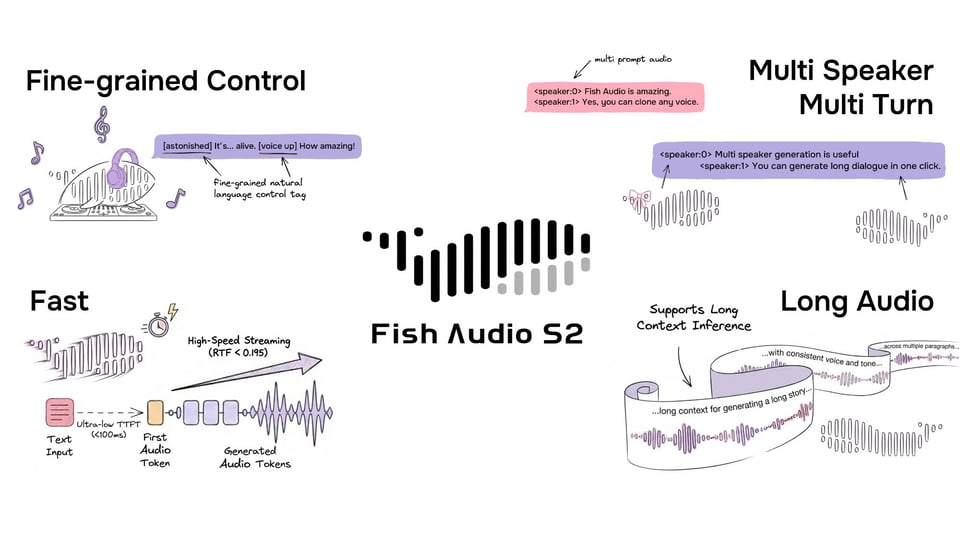
Fish Audio performs particularly prominent in these usage scenarios, especially for users who need multilingual support or more expressive voices. The platform's Fish Audio S1 model can deliver natural-sounding speech with emotion control through tags like (excited) or (nervous) directly embedded in the text, providingpredictable and consistent results without complicated settings.
The platform supports eight languages (including English, Chinese, Japanese, German, French, Spanish, Korean, and Arabic) with full emotion tag functionality. For Discord communities with international members, this coverage can satisfy the demands for most common languages.
Voice cloning is another option—Fish Audio requires only 10 seconds of reference audio to generate a custom voice that matches a specific speaker. This can be useful for content creators seeking a consistent voice persona without the need of recording everything manually.
Other External TTS Options:
Tools like ElevenLabs and Murf also offer high-quality voices suitable for Discord content. Whether a choice is proper depends on the specific needs—some tools prioritize English quality, while others offer broader language options or different pricing structures.
TTS Etiquette: Using It Responsibly
While TTS can enhance communication, misuse will quickly become a nuisance. There are a few guidelines that help maintain a positive community environment:
Do:
● Use TTS for important announcements or time-sensitive alerts.
● Keep messages brief and clear.
● Respect server rules about TTS usage.
● Test the TTS settings in a private channel before deploying in an active server.
Don't:
● Spam TTS messages repeatedly.
● Send excessively long messages that take too long to read.
● Use TTS for every casual message, which will diminish its impact.
● Ignore requests to stop if others find it disruptive.
Moreover, it is imperative for server admins to set clear expectations for TTS use and enforce them consistently.
Summary
Setting up text to speech on Discord involves a few straightforward steps: 1) to enable TTS in the Accessibility settings, 2) to configure notification preferences, and 3) to start using the /tts command. Server admins can additionally control the accessibility and operation mode of TTS.
A dedicated bot should be added to use TTS in voice channels.. For higher-quality voices that sound more natural than Discord's built-in options, external TTS tools like Fish Audio offer significant improvements, which are particularly popular among multilingual communities and creators in need of expressive and customizable voices.
The feature itself is simple; whereas whether it is effective depends on respecting the relevant community and choosing the right tool for specific needs.