Wie man Text-to-Speech auf TikTok nutzt: Ein vollständiges Tutorial für Creator
22. Jan. 2026
 Kyle Cui, AI Systems Engineer
Text-to-Speech auf TikTok verwandelt Ihre geschriebenen Untertitel in gesprochenes Audio. So kann eine KI-Stimme Ihre Inhalte moderieren, ohne dass Sie selbst ein einziges Wort aufnehmen müssen. Diese Funktion ist zu einem Markenzeichen der Plattform geworden – die vertraute ‐TikTok-Stimme‐, die man in unzähligen Videos hört, wie sie Untertitel vorliest, Pointen liefert oder Tutorials erklärt.
Egal, ob Sie Voiceover hinzufügen möchten, ohne vor der Kamera zu sprechen, Ihre Inhalte für Zuschauer mit Sehbehinderungen barrierefreier machen wollen oder einfach einen bewährten Content-Stil nutzen möchten: Die TTS-Funktion von TikTok ist einfach zu bedienen, wenn man weiß, wo man sie findet. Dieser Leitfaden deckt den grundlegenden Prozess, die Stimmauswahl, Tipps zur Fehlerbehebung und fortgeschrittene Alternativen für Fälle ab, in denen die integrierten Stimmen von TikTok nicht ganz Ihren Anforderungen entsprechen.
Was TikTok Text-to-Speech bewirkt
Die Text-to-Speech-Funktion von TikTok wandelt jede Texteinblendung, die Sie Ihrem Video hinzufügen, in gesprochenes Audio um. Die KI-generierte Stimme liest Ihren Untertitel laut vor, synchronisiert mit Ihrem Videoinhalt. Die Zuschauer sehen den Text auf dem Bildschirm und hören ihn gleichzeitig, was besonders nützlich für Tutorials, Storytelling, Kommentare und die Barrierefreiheit ist.
Die Funktion wurde Ende 2020 eingeführt und erfreut sich seither wachsender Beliebtheit. Untersuchungen der UBC Sauder School of Business ergaben, dass Creator, die KI-Stimmen nutzen, 24 % mehr Videos produzierten als diejenigen, die dies nicht taten, was darauf hindeutet, dass die Funktion die Produktionsbarrieren erheblich senkt.
TikTok bietet mehrere Stimmoptionen in verschiedenen Sprachen, Akzenten und Charakterstilen an – von der beliebten ‐Jessie‐-Stimme (oft als ‐TikTok-Stimme‐ oder ‐Siri-Stimme‐ bezeichnet) bis hin zu ausgefallenen Optionen wie Ghostface oder Charakteren im Disney-Stil.
Schritt 1: Ihr Video aufnehmen oder hochladen
Beginnen Sie mit der Erstellung des Videoinhalts, der Ihre TTS-Erzählung begleiten soll.
- Öffnen Sie TikTok und tippen Sie auf die Schaltfläche ‐+‐ unten in der Mitte Ihres Bildschirms.
- Nehmen Sie neues Material auf oder tippen Sie auf Hochladen, um ein vorhandenes Video aus Ihrer Galerie auszuwählen.
- Schließen Sie das Trimmen oder die Anordnung der Clips ab, falls Sie mehrere Clips verwenden.
Ihr Video muss kein aufgenommenes Audio enthalten – TTS funktioniert perfekt über lautlosem Material, Hintergrundmusik oder sogar über vorhandenem Audio, das Sie durch eine Erzählung ergänzen möchten.
Schritt 2: Text zu Ihrem Video hinzufügen
TTS wandelt Texteinblendungen in Sprache um, daher müssen Sie zuerst Text hinzufügen.
- Tippen Sie nach der Aufnahme oder dem Hochladen im Bearbeitungsmenü auf der rechten Seite auf die Schaltfläche Text.
- Geben Sie die Wörter ein, die die KI-Stimme sprechen soll.
- Tippen Sie auf Fertig, um den Text in Ihrem Video zu platzieren.
Text-Tipps:
● Halten Sie einzelne Textfelder auf 1-2 Sätze begrenzt, um ein besseres Tempo zu erzielen.
● Lesen Sie sorgfältig Korrektur – die KI liest genau das vor, was Sie tippen, einschließlich Tippfehlern.
● Die Zeichensetzung beeinflusst die Aussprache: Punkte erzeugen Pausen, Kommas kurze Unterbrechungen und Fragezeichen passen die Intonation an.
● Erstellen Sie für längere Erzählungen mehrere Textfelder und wenden Sie TTS auf jedes einzeln an.
Sie können Textposition, Schriftart, Farbe und Größe anpassen. Diese visuellen Einstellungen haben keinen Einfluss auf das TTS-Audio, beeinflussen aber, wie Zuschauer den Text während des Zuhörens mitlesen.
Schritt 3: Text-to-Speech anwenden
Hier passiert die Magie.
- Tippen Sie auf das soeben erstellte Textfeld.
- Wählen Sie Text-to-Speech aus dem erscheinenden Menü.
- Durchsuchen Sie die verfügbaren Stimmoptionen.
- Wählen Sie die Stimme, die zum Ton Ihres Inhalts passt.
- Tippen Sie zum Übernehmen auf Fertig.
Die KI-Stimme liest Ihren Text nun laut vor, wenn das Video abgespielt wird. Überprüfen Sie das Ergebnis in der Vorschau, um sicherzustellen, dass Timing und Stimmauswahl gut zu Ihrem Inhalt passen.
TTS auf mehrere Textfelder anwenden:
Wenn Sie mehrere Texteinblendungen erstellt haben, können Sie dieselbe Stimme auf alle anwenden:
- Suchen Sie nach der Auswahl einer Stimme nach der Option ‐Stimme auf den gesamten Text in diesem Video anwenden‐.
- Tippen Sie darauf, um dieselbe TTS-Stimme für alle Textfelder zu verwenden.
Dies spart Zeit und sorgt für eine konsistente Erzählung in Ihrem gesamten Video.
Schritt 4: Die richtige Stimme wählen
TikTok bietet eine Vielzahl von Stimmkategorien an, wobei die Verfügbarkeit je nach Region und App-Version variieren kann:
Standard-Stimmen:
● Jessie – Die ursprüngliche ‐TikTok-Stimme‐, weiblich, klar und leicht fröhlich
● Joey – Männliche Stimme, häufig für Humor und Erzählungen verwendet
● Eddie – Männliche Stimme mit einem markanten Tonfall
● Rocket – Roboterhafterer, unverwechselbarer Klang
● Alex, Chris, Taylor, Kendall – Zusätzliche Stimmcharaktere
Charakterstimmen:
● Ghostface – Die Schurkenstimme aus Scream
● Stitch – Aus Lilo & Stitch
● C-3PO, Stormtrooper – Star Wars Charaktere
● Chewbacca – Unverwechselbares, knurrendes Sprechen
Saisonale und spezielle Stimmen:
● Weihnachtsmann, Halloween-Stimmen und andere wechselnde Optionen
Tipps zur Stimmauswahl:
● Passen Sie den Stimmton an die Stimmung Ihres Inhalts an – Jessie eignet sich gut für lockere oder fröhliche Videos, während Ghostface zu dramatischen oder gruseligen Themen passt.
● Charakterstimmen erregen Aufmerksamkeit, können aber in instruktiven oder pädagogischen Inhalten ablenken.
● Testen Sie mehrere Stimmen, bevor Sie sich festlegen, indem Sie die Vorschau jeder Option nutzen.
● Beliebte Stimmen haben einen hohen Wiedererkennungswert, was je nach Ziel das Engagement fördern oder hemmen kann.
Schritt 5: Text-Timing (Dauer) festlegen
Steuern Sie, wann Ihr TTS-Text erscheint und verschwindet:
- Tippen Sie auf das Textfeld in Ihrem Video.
- Wählen Sie Dauer festlegen (oder ziehen Sie die Text-Timeline am unteren Bildschirmrand).
- Passen Sie den Start- und Endpunkt an das Timing Ihres Videos an.
Das TTS-Audio wird abgespielt, sobald der Text auf dem Bildschirm erscheint. Staffeln Sie bei mehreren Textfeldern deren Timing, um eine flüssige Erzählung zu erstellen.
Best Practices für das Timing:
● Geben Sie den Zuschauern genug Zeit zum Mitlesen (selbst mit Audio lesen viele Menschen gleichzeitig).
● Stimmen Sie das Erscheinen des Textes auf relevante visuelle Elemente ab.
● Lassen Sie kurze Lücken zwischen den Textfeldern, um ein natürliches Tempo zu schaffen.
Schritt 6: Audiopegel anpassen
Bringen Sie die TTS-Lautstärke mit Hintergrundmusik oder anderen Audiospuren in Einklang:
- Tippen Sie oben im Bearbeitungsbildschirm auf Sound hinzufügen.
- Wenn Sie Hintergrundmusik verwenden, tippen Sie auf Lautstärke.
- Senken Sie den Original- oder Hintergrundsound ab, um sicherzustellen, dass die TTS klar hörbar ist.
- Überprüfen Sie die Audio-Balance in der Vorschau, bevor Sie das Video fertigstellen.
TTS muss für die Klarheit normalerweise lauter sein als die Hintergrundmusik. Eine gängige Richtlinie ist die Einstellung auf 100 % und die Hintergrundmusik auf 20‐40 %.
Schritt 7: Ihr Video posten
Sobald alles richtig klingt:
- Tippen Sie auf Weiter, um zum Posting-Bildschirm zu gelangen.
- Fügen Sie Ihre Bildunterschrift, Hashtags und weitere Einstellungen hinzu.
- Tippen Sie auf Posten, um das Video zu veröffentlichen.
Ihr Video wird nun mit dem KI-generierten Voiceover abgespielt, das für alle Zuschauer sichtbar und hörbar ist.
Fehlerbehebung bei häufigen TTS-Problemen
Text-to-Speech-Option wird nicht angezeigt:
● Aktualisieren Sie Ihre TikTok-App auf die neueste Version.
● Die Funktion könnte in Ihrer Region vorübergehend nicht verfügbar sein.
● Versuchen Sie, die App zu schließen und erneut zu öffnen.
Stimmoptionen sind eingeschränkt oder fehlen:
● Einige Stimmen sind regionsspezifisch oder werden regelmäßig ausgetauscht.
● Charakterstimmen können Lizenzbeschränkungen unterliegen.
● Suchen Sie nach App-Updates – neue Stimmen werden regelmäßig hinzugefügt.
TTS-Audio klingt falsch:
● Überprüfen Sie die Zeichensetzung – fehlende Punkte können zu Pausenverlust führen.
● Abkürzungen könnten wörtlich gelesen werden (‐Dr.‐ statt ‐Doktor‐).
● Zahlen und Sonderzeichen können zu unerwarteter Aussprache führen.
Lautstärke zu niedrig:
● Regeln Sie die Lautstärke der Hintergrundmusik herunter.
● Stellen Sie sicher, dass die Lautstärke Ihres Geräts während der Vorschau aufgedreht ist.
● Einige Stimmen sind von Natur aus leiser als andere.
Nutzung externer TTS-Tools für TikTok
Die integrierten Stimmen von TikTok funktionieren gut für schnelle Inhalte, haben aber Grenzen. Die Stimmen sind erkennbar ‐TikTok-Stimmen‐, die Anpassungsmöglichkeiten sind minimal und die Verfügbarkeit kann variieren. Creator, die mehr Kontrolle über ihre Voiceover wünschen, entscheiden sich oft dafür, Audio extern zu generieren und in TikTok zu importieren.
Der externe TTS-Workflow:
- Verwenden Sie einen TTS-Generator eines Drittanbieters, um Ihre Audiodatei zu erstellen.
- Laden Sie die MP3- oder WAV-Datei herunter.
- Importieren Sie das Audio in einen Videoeditor (wie CapCut, InShot oder eine ähnliche App).
- Richten Sie das Voiceover an Ihrem Videoinhalt aus.
- Exportieren Sie das fertige Video und laden Sie es auf TikTok hoch.
Dieser Ansatz nimmt mehr Zeit in Anspruch, bietet aber erhebliche Vorteile, darunter natürlicher klingende Stimmen, eine konsistente Verfügbarkeit unabhängig von TikToks wechselnden Optionen und erweiterte Anpassungsmöglichkeiten.
Wann externes TTS sinnvoll ist:
Für Creator, die ausdrucksstärkere, natürlicher klingende Stimmen benötigen – oder die Inhalte in mehreren Sprachen produzieren – bieten externe TTS-Tools oft eine Qualität, die die integrierten Optionen von TikTok nicht erreichen können. Fish Audio funktioniert besonders gut für TikTok-Inhalte, da die Stimmen deutlich menschlich und nicht roboterhaft klingen und das Emotions-Tag-System es Creatoren ermöglicht, die Vortragsweise ohne komplexe Konfiguration anzupassen.
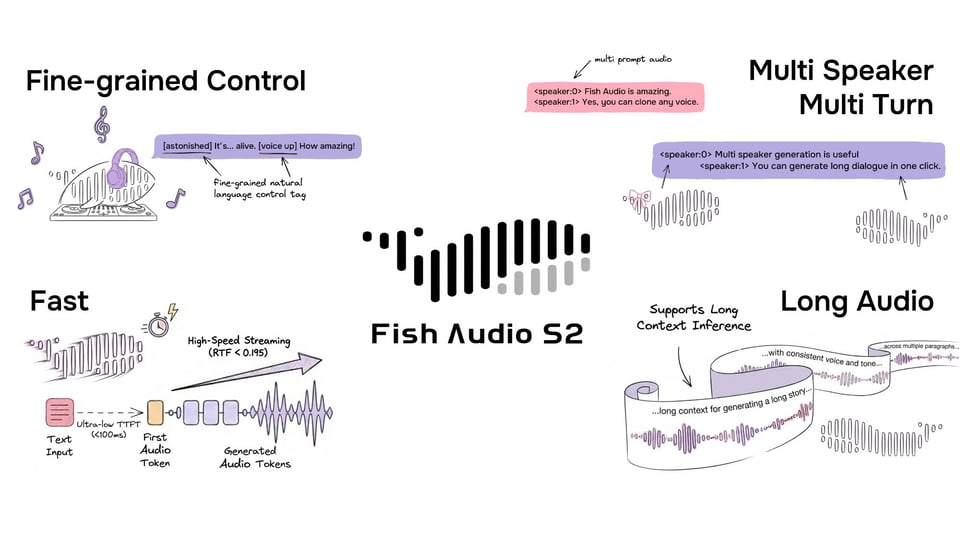
Das Fish Audio S1-Modell erzeugt natürliche Sprache mit Emotionskontrolle durch einfache Tags im Text – wie (excited), (nervous), (confident) – die beeinflussen, wie einzelne Zeilen vorgetragen werden. Dies ist besonders nützlich für Storytelling-Inhalte, bei denen emotionale Variationen die Zuschauer bei der Stange halten.
Die Plattform unterstützt acht Sprachen mit voller Emotionsfunktionalität: Englisch, Chinesisch, Japanisch, Deutsch, Französisch, Spanisch, Koreanisch und Arabisch. Für Creator, die Inhalte für ein internationales Publikum oder zweisprachige Videos erstellen, deckt dies die meisten gängigen Bedürfnisse ab, ohne dass mehrere Tools erforderlich sind.
Voice Cloning ist eine weitere Option, wenn Sie eine konsistente Stimm-Persona wünschen. Fish Audio benötigt nur 10 Sekunden Referenz-Audio, um eine benutzerdefinierte Stimme zu erstellen, was es ermöglicht, eine wiedererkennbare Kanal-Identität aufzubauen, ohne jedes Voiceover manuell aufnehmen zu müssen.

**After Fish Audio description Content: **
Fish Audio TTS-Benutzeroberfläche mit TikTok-Erzähltext. Empfohlene Aktion:
- Besuchen Sie fish.audio
- Geben Sie einen Beispiel-TikTok-Erzähltext mit Emotions-Tags ein
- Erstellen Sie einen Screenshot der Benutzeroberfläche. Anmerkung: Zeigt die Syntax der Emotions-Tags. Empfohlene Größe: 1200x700. Dateiname: fish-audio-tiktok-voice-example.png
Andere externe TTS-Optionen:
ElevenLabs bietet sehr ausdrucksstarke Stimmen, die bei professionellen Creatoren beliebt sind. Murf AI bietet starke Anpassungsmöglichkeiten für pädagogische und Erklär-Inhalte. Online-Generatoren wie Gesserit und TikTokVoice sind nützlich für Desktop-basierte Bearbeitungs-Workflows.
Kreative TTS-Ideen für TikTok
Storytelling: Nutzen Sie TTS, um Geschichten zu erzählen, während Sie passendes Bildmaterial, B-Roll oder Textanimationen zeigen. Die KI-Stimme bietet einen konsistenten Erzähler, ohne dass schauspielerisches Talent erforderlich ist.
Tutorial-Inhalte: TTS führt die Zuschauer durch die Schritte, während Ihr Video den Prozess demonstriert. Dieser Ansatz ist besonders effektiv für Kochen, Handwerk und How-to-Inhalte.
Reaktion/Kommentar: Fügen Sie Ihre Gedanken via TTS hinzu, während Sie Inhalte zeigen, auf die Sie reagieren. Das funktioniert gut, wenn Sie nicht vor der Kamera erscheinen möchten, aber dennoch Ihre Persönlichkeit vermitteln wollen.
Duette und Stitches: Fügen Sie TTS-Kommentare zu Inhalten anderer Creator für Reaktions-Posts hinzu.
Barrierefreiheit: TTS macht Ihre Inhalte für Zuschauer mit Sehbehinderungen oder Leseschwierigkeiten zugänglich. Es ist ein praktischer Weg, um Ihr potenzielles Publikum zu erweitern.
Zusammenfassung
Das Hinzufügen von Text-to-Speech auf TikTok folgt einem einfachen Prozess: Text zum Video hinzufügen, den Text antippen, Text-to-Speech auswählen und eine Stimme wählen. Die Funktion beseitigt Aufnahmehürden, verbessert die Barrierefreiheit und nutzt einen bewährten Content-Stil, den Zuschauer wiedererkennen.
Für Creator, die Stimmen jenseits der integrierten TikTok-Optionen suchen – natürlicher, ausdrucksstärker oder konsistenter – bieten externe TTS-Tools wie Fish Audio signifikante Upgrades. Der zusätzliche Schritt im Workflow zahlt sich durch die Stimmqualität und kreative Kontrolle aus.
Beginnen Sie mit TikToks nativem TTS, um das Format kennenzulernen, und erweitern Sie es dann um externe Tools, wenn Ihre Inhalte anspruchsvolleres Audio erfordern.